 shibi sharkie
The short answer
Open Calls, choose All, Incoming, or Outgoing, then open a call. Look for Summary, Transcript, and recording playback. Spam calls has its own section.
Start with the call list
Open Calls from chat. The All, Incoming, and Outgoing tabs help narrow the list, and the app remembers your last selected tab. Calls appear by their time, including failed outgoing attempts rather than pinning old failures at the top.
Open a call to see its details. A failure or a call without a conversation is still a useful outcome to record, but it is not proof that the intended message was delivered.
Read the summary for the point of the call
A useful summary is brief: “Maya from Harbor Delivery asked where to leave the parcel.” It helps you decide whether to look deeper. It is an AI interpretation, not a complete record or a verified statement of fact.
Normal calls may also surface a short result in chat. Spam-filtered calls stay in Spam without a normal chat summary, so the main conversation is not filled with unwanted pitches.
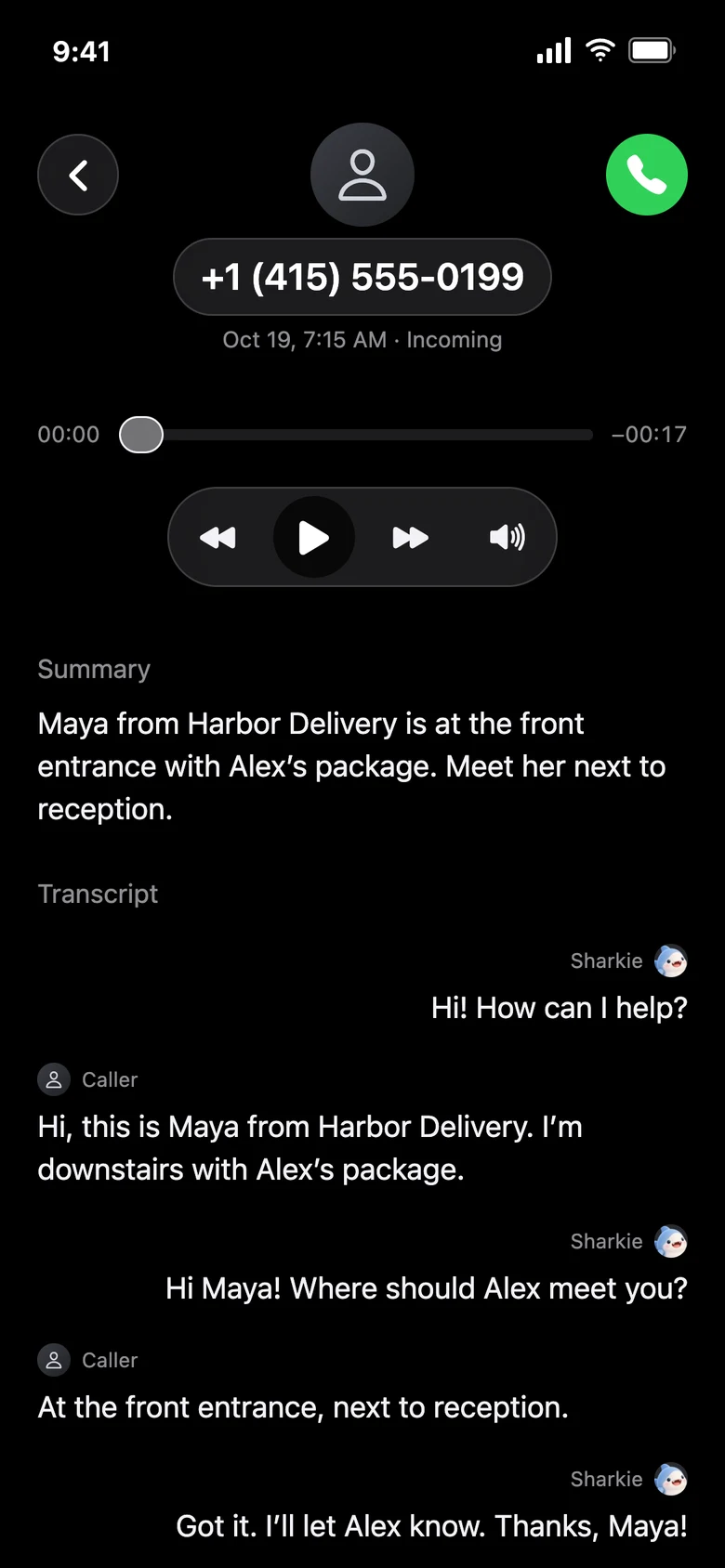
Use the transcript for the conversation
The transcript separates the caller’s words from the assistant’s. It helps you locate a callback request, an instruction, or an explanation without replaying the entire call.
Speech recognition can mishear names, numbers, email addresses, accents, or overlapping speech. A transcript can also be incomplete. Confirm important details with the caller or an available recording rather than assuming the text is exact.
A call that ends before useful speech is captured may have no conversation to show. Missing text does not establish the caller’s intention or prove that the caller was a robocall.
Listen when you need tone or exact wording
When a recording is available, use the audio player to play, pause, or move to a different point in the conversation. If it is not available, the interface shows that state instead of implying there is audio to play.
Recording is enabled by default for eligible AI-handled incoming and outgoing calls and may start at connection, including the greeting. The assistant is instructed to give a brief recording notice naturally. Recording stops before an owner takeover.
Recordings are stored privately by the recording provider for up to 30 days and are available only through authenticated owner access. They may be unavailable because of expiry or a technical failure. Check the Privacy Policy for current details and remember that recording requirements depend on the circumstances and applicable law.
Turn a record into a useful next step
After reading, you can ask Sharkie to make a personal follow-up call, clarify a saved preference, or move a conversation to Spam. Choose whether a spam action applies only to this item or similar calls too. Restore a mistaken classification and change the future preference separately when needed.
For uncertain account changes, identity checks, urgent messages, or important financial details, verify through a trusted channel. A transcript and an assistant’s summary do not replace that verification.