 shibi sharkie
The short answer
Use the carrier-specific instructions inside the app. Do not assume a forwarding code from another carrier or a random guide will work for your line.
Before you start
You need access to a supported U.S. phone number, a compatible carrier plan, and an eligible Sharkie account and subscription. Start with Sharkie on the App Store, then follow the guided setup inside the app.
Your existing phone number stays yours. Sharkie supplies a receiving number for the forwarding setup; it is not a replacement personal number to hand out. Carrier features and charges vary, so check your plan if you are unsure.
The setup, step by step
- Verify your number. Enter the U.S. number you want to use and complete the verification step. Verification proves access to the line; it does not turn forwarding on.
- Choose the carrier you pay. Select the provider shown on your bill or account. An underlying network name may not be the right provider for your plan.
- Follow that carrier’s guide. Use the receiving number and instructions displayed inside Sharkie. The current setup sends all incoming calls directly to the assistant.
- Complete the forwarding check. Follow the in-app test and wait for the result. A successful check means the test reached Sharkie, not that every future network condition is guaranteed.
- Explore the sample conversation. The app includes a clearly labeled prerecorded demonstration so you can see a transcript and recording without mistaking the setup check for a real caller’s message.
If the check does not pass
Confirm the number you verified is the line you configured, the receiving number matches the app, and you selected the right carrier. For dual-SIM phones, double-check which line you changed. Do not keep applying different codes or start buying extra numbers to troubleshoot.
A carrier’s confirmation message is useful, but the in-app check confirms whether the call reached the service. If setup is still unavailable or the check keeps failing, contact support with your carrier, the step that failed, and the error text. Never send your verification code or password.
How to turn forwarding off again
Open the app menu and choose Turn off forwarding. Use the guide for your carrier and wait for the carrier’s confirmation. If the carrier’s instructions are unclear, ask the carrier to confirm forwarding is disabled on your line.
Deleting the app, deleting your Sharkie account, or canceling the subscription does not turn off carrier forwarding. These are separate actions. Turn forwarding off before you stop using the service so calls are not left pointing at an inactive receiving number.
What you see after setup
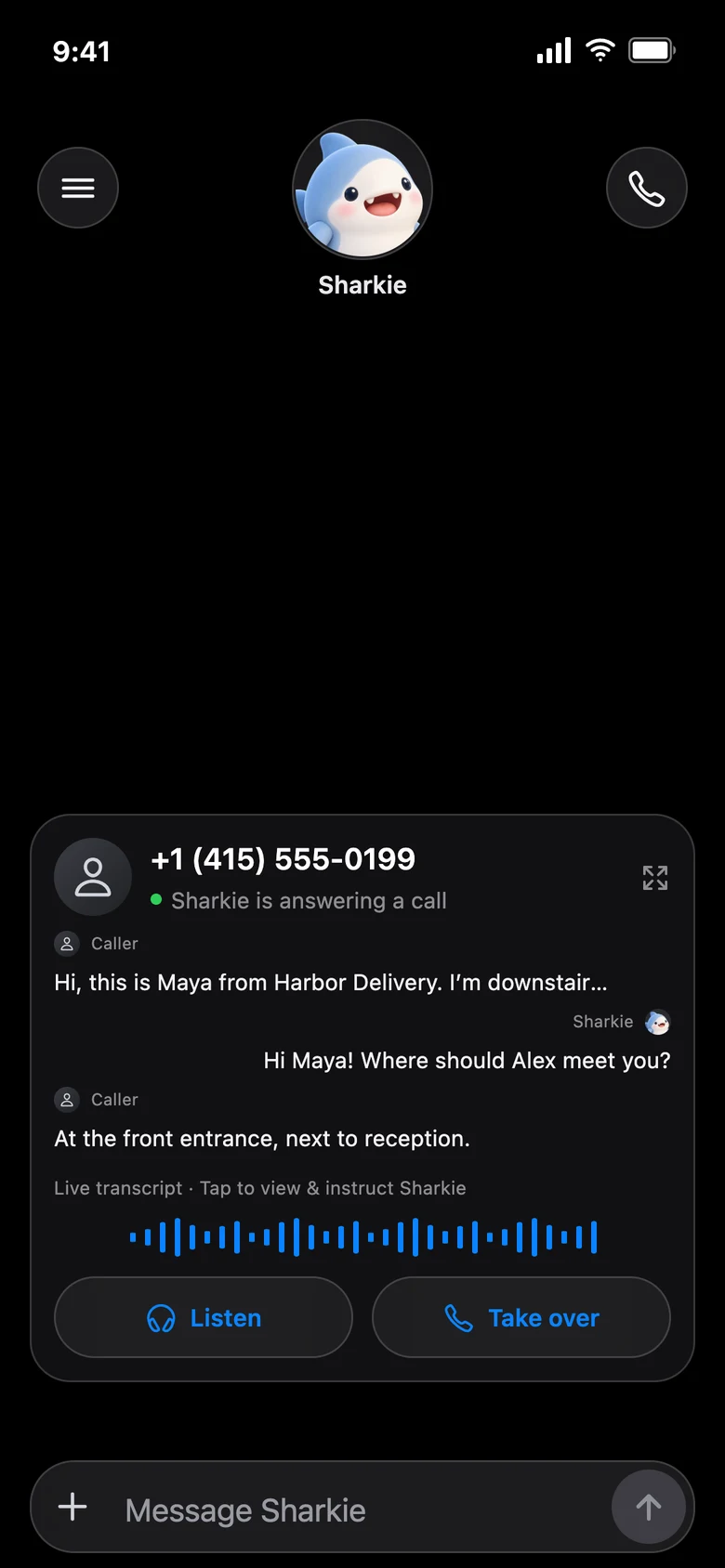
Incoming call activity appears in chat and in Calls. Normal calls can bring a short summary, while filtered calls are kept in Spam calls. During an eligible active call, live controls let you listen, take over, or guide the assistant.
Sharkie is not an emergency answering service. Keep urgent and safety-critical communication on a separate reliable path. For help, use in-app support or email support.